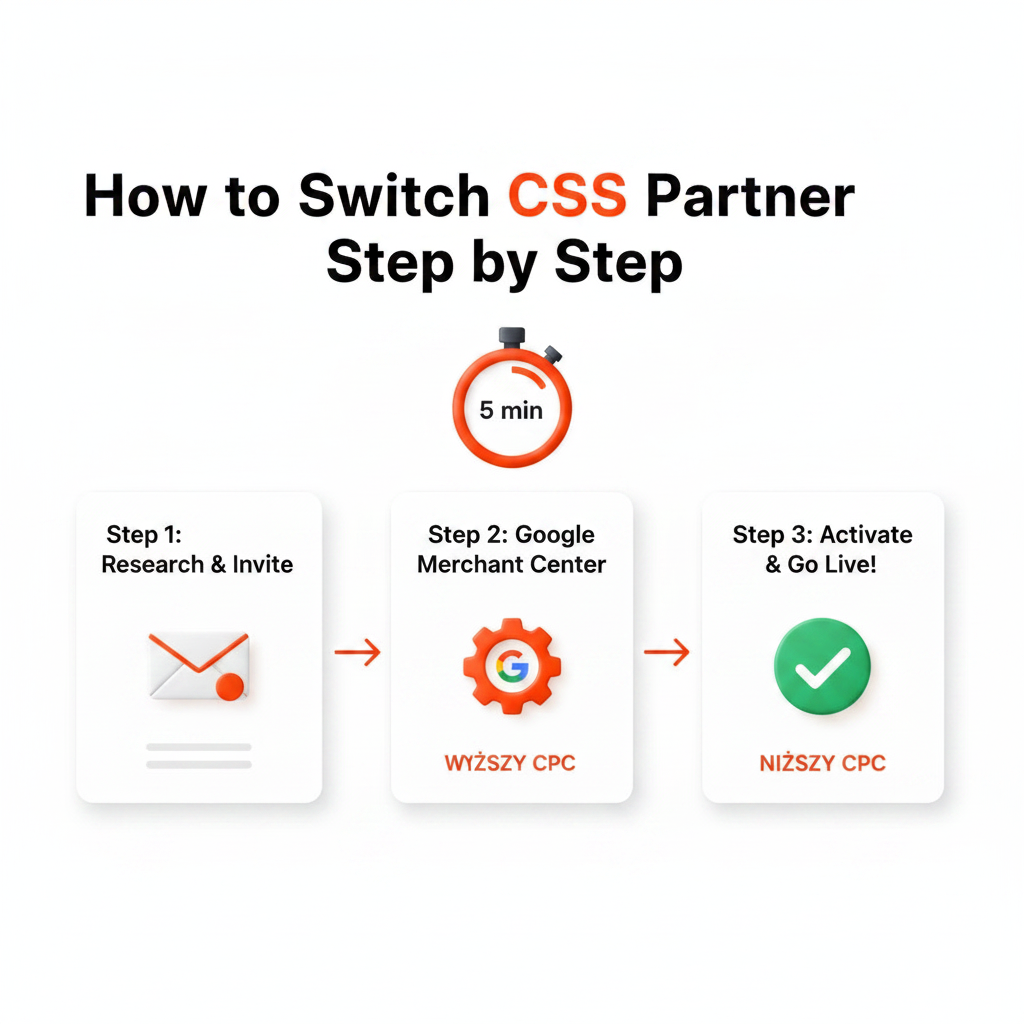
Switching your Google CSS partner doesn't mean starting over. You keep the same Merchant Center account, the same Google Ads account and the same campaigns – the only thing that changes is which Comparison Shopping Service (CSS) places your offers in the Shopping auction. The new CSS sends a request, a Merchant Center admin approves it, and the switch takes effect after a grace period of up to 14 days.
This guide walks through the process step by step, based on Google's documentation, and lists what to check before and after the move. If you are new to the topic, start with What is Google CSS?
Before you start: checklist
- Admin access. Only an admin of the Merchant Center account can approve a switch request. If your account sits under an agency's or a CSS's multi-client account, make sure it has at least one admin of its own – according to Google, a switch can fail when an account has users but no admins.
- Merchant Center ID. Your new CSS needs it to send the request.
- Countries. List the countries you advertise in and confirm the new CSS covers all of them, including any outside the 21 CSS program countries.
- Surfaces. By default a CSS places products only in the Shopping unit on Google Search. If you use dynamic remarketing or rely on other surfaces such as the Shopping tab, Display or YouTube, confirm the new CSS is opted in to them.
- Free listings. In Europe you can choose only one CSS for free product listings – decide which one it should be.
- Your current contract. Check the notice period with your current CSS.
- Baseline data. Export the last 30–60 days of Shopping data per country: CPC, clicks, impression share, conversions, conversion value and ROAS. You will need it to measure the effect.
- Timing. Avoid switching right before your busiest season, such as Black Friday, so you have time to compare results calmly.
Step 1: Choose your new CSS partner
Compare pricing models (flat fee, CPC markup or commission), country coverage, supported surfaces, contract terms and support. A checklist is in our Google CSS guide, and the differences between Google's own service and independent partners are covered in Google CSS vs Google Shopping Europe.
Step 2: Share your Merchant Center ID
Send your Merchant Center account ID to the new CSS. According to Google, a CSS may only start an account switch after the merchant has confirmed that they want that CSS to place their Shopping ads or free listings, so expect to confirm this in writing or in the partner's sign-up form.
The CSS can link your account directly to its CSS or place it under one of its multi-client accounts. Ask which option it uses.
Step 3: The CSS sends the switch request
The new CSS starts the switch in its CSS Center by entering your Merchant Center ID. Google then notifies the admins of your Merchant Center account about the request.
Step 4: Approve the request in Merchant Center
A Merchant Center admin approves or rejects the request. Approving takes a couple of minutes, and nothing in your feed or campaigns has to change. Your Google Ads account does not need to be switched either: it is the Merchant Center account that determines which CSS your campaigns belong to.
Step 5: Wait for the grace period
After approval, the switch takes effect after a grace period of up to 14 days. Your current CSS can shorten or waive it, and during the grace period you can still revert your decision. Users of your Merchant Center account stay on the account throughout the switch.
Until the switch takes place, your account remains with your current CSS. Keep your campaigns running as usual and avoid major changes to bids or structure, so the before-and-after comparison stays clean.
Step 6: Check that the switch worked
- The “By …” link. Shopping ads show the name of the CSS at the bottom. Use the Ad Preview and Diagnosis tool in Google Ads to check your ads without generating impressions or clicks.
- Merchant Center. Confirm that your products are still approved and that no new account-level issues have appeared.
- Free listings. Make sure the CSS selected for free listings is the one you want.
- Performance. After two to four weeks, compare CPC, impression share, clicks, conversions and ROAS with your baseline – per country and for the same days of the week.
What happens to your campaigns and data
| Item | After a CSS switch |
|---|---|
| Merchant Center account | Same account; users stay on it |
| Product feed | No changes needed |
| Google Ads account and campaigns | No switch needed; campaigns, budgets and history stay |
| Conversion reporting and automated bidding | Available with every CSS |
| Dynamic remarketing and other surfaces | Can stop if the new CSS is not opted in to them |
| Products for countries outside the program | Stop serving unless the new CSS covers them |
Switching vs. using several CSSs
A switch moves your Merchant Center account from one CSS to another. Alternatively, you can work with more than one CSS at the same time; each CSS then uses a separate Merchant Center account for your products. Google says a merchant is never second-priced against itself in the auction, so being represented by several CSSs does not raise your own CPC, and the same offer from the same merchant is not repeated within one ad unit.
Running several CSSs means maintaining several Merchant Center accounts and feeds, so for most stores one well-chosen CSS partner is simpler to manage.
How to switch back
You can move to another CSS – or back to Google Shopping – through the same account switch process, subject to the grace period and your contract terms.
Common mistakes
- Approving the request without checking that the new CSS covers all your countries and surfaces.
- Changing bids, budgets and the CSS at the same time, which makes the result impossible to measure.
- Judging the effect after a few days instead of comparing full weeks.
- Expecting a fixed saving. Compared with Google Shopping Europe, the CPC advantage can reach up to 20%, but it depends on the category and competition.
Frequently asked questions
How long does it take to switch CSS?
Approving the request takes minutes. The switch itself takes effect after a grace period of up to 14 days, which the previous CSS can shorten or waive.
Do I have to pause my campaigns?
No. Nothing needs to be paused or rebuilt. Until the switch takes effect your account stays with your current CSS; afterwards your existing campaigns are served through the new one, on the surfaces and in the countries it covers.
Do I lose my campaign history?
No. Your Google Ads account and campaigns don't change, so their history stays where it is.
Do I need a new product feed?
No. You keep the same Merchant Center account and feed.
Who has to approve the switch?
An admin of the Merchant Center account.
Switching to Feedve
Feedve is an independent Google CSS partner available in all 21 program countries, with a flat monthly fee and no commission on ad spend. See pricing or learn how Feedve works as a Google CSS partner. Agencies moving several clients can do it under their own brand with white label CSS.